
Outlook not receiving emails? Safe checks to try first
Safe checks to help work out whether missing email is an Outlook problem or an issue with the email account itself.
Waiting for an important email that never seems to arrive is frustrating, particularly when Outlook was working perfectly well yesterday. But a missing message doesn't always mean Outlook is broken. It might already be in another folder, or the email account might have stopped receiving messages altogether.
When I'm looking at an email problem, the first thing I want to establish is whether the message has reached the mailbox. That tells us whether to look at Outlook on the computer or at the email account itself. It's a much better starting point than changing passwords or removing accounts and hoping for the best.
This guide is for Windows users, including people using classic Outlook, new Outlook for Windows or Outlook in a web browser. Some steps depend on which version and email provider you use, and I'll point out the differences where they matter.
First, is the email reaching your mailbox?
Webmail simply means opening your email account in a web browser instead of the Outlook program on your computer. For example, you might use Outlook.com for an Outlook, Hotmail or Live address, Gmail for a Gmail address, or a webmail page provided by your employer or internet provider.
Use the website belonging to your actual email provider. Having a Gmail or another provider's account set up in Outlook doesn't make it an Outlook.com mailbox. If you're unsure which website is correct, use the provider's known website or official support instructions.
Once you're signed in, look for the missing message and check whether newer messages are arriving. If you can, compare what you see with Outlook on the computer and with the same account on your phone.
| What you find | What it suggests |
|---|---|
| New messages appear in webmail but not in Outlook on the PC | The mailbox is receiving email. Look next at Outlook's connection, sign-in and synchronisation (how it updates its messages). |
| The messages are missing in webmail too | Look at Junk Email, rules, storage, the sender and the email provider. It may not be a problem with the Windows application. |
| You can't sign in to webmail | Account access or a provider problem needs attention before you start changing Outlook settings. |
If you can, have a test message sent from a different account. Check that the sender has used the correct address, and allow a little time for delivery. One late message doesn't necessarily mean all incoming email has stopped.
There's one less common exception worth knowing about: older accounts using POP3 can download messages to a computer and, by default in classic Outlook, remove them from the server. I'll explain that further down. So an empty webmail inbox isn't always proof that nothing was delivered.
Which version of Outlook are you using?
You don't need to know the exact version number. Just work out which of these looks most like your screen:
- Classic Outlook for Windows: usually has a File tab at the top, along with a Send/Receive tab.
- New Outlook for Windows: has a Settings cog near the top right and a different set of menus.
- Outlook in a browser: you're using a website such as Outlook.com or your organisation's Outlook webmail in Chrome, Edge or another browser.
Microsoft 365 is not a fourth version of the Outlook screen. It's a family of subscriptions and services, and a business Microsoft 365 email account may be used in classic Outlook, new Outlook or a browser. Other providers' accounts can also be added to Outlook.
If you're unsure, Microsoft's guide to identifying your Outlook version has examples. The distinction matters because an instruction written for classic Outlook may not exist in new Outlook.
Common reasons emails aren't appearing
1. Classic Outlook is working offline
This is one of the simplest things to check if you have classic Outlook for Windows.
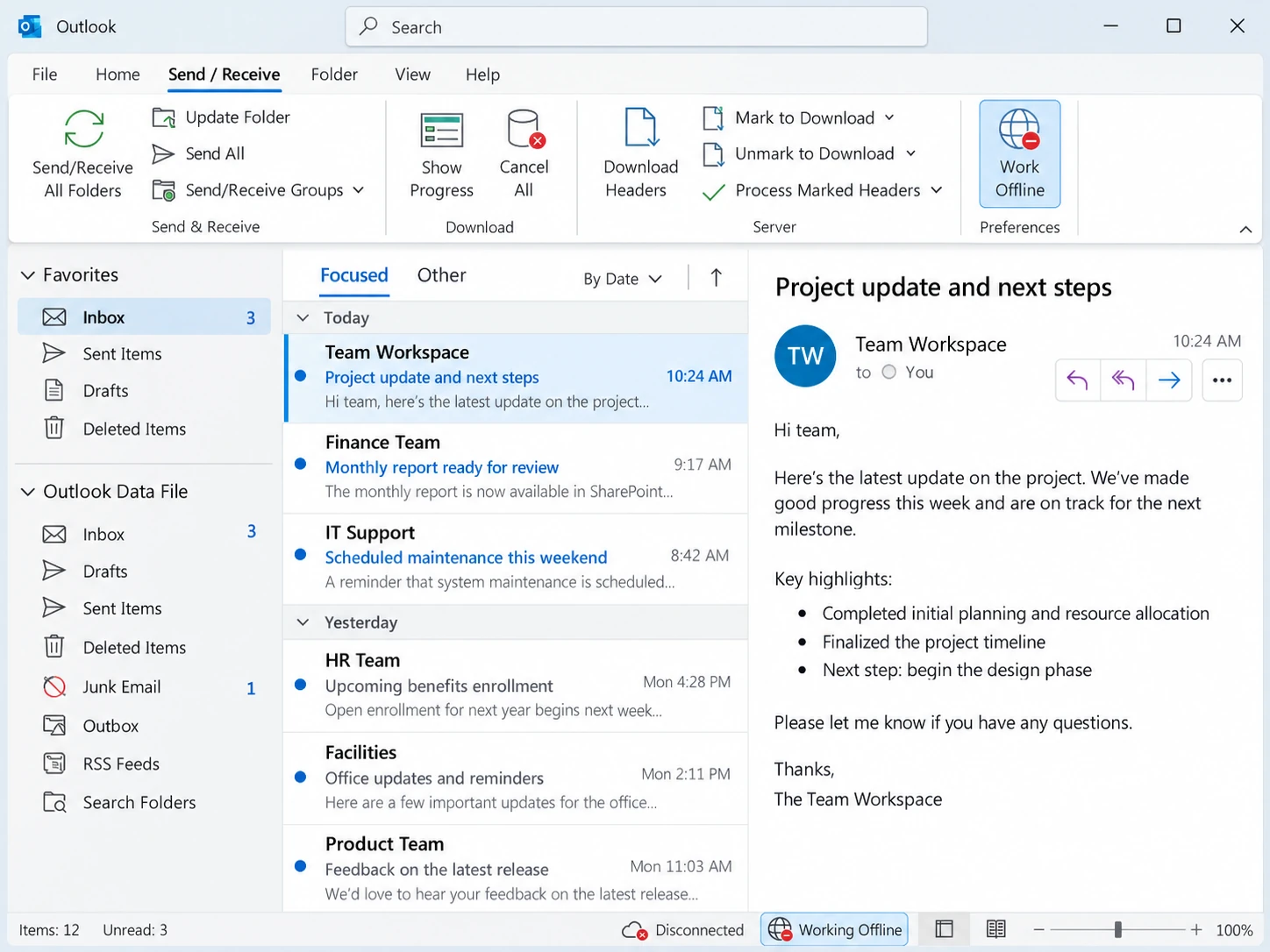
- Look at the bottom of the Outlook window. Does it say Working Offline, Disconnected or Trying to connect?
- If it says Working Offline, select Send/Receive at the top, then Work Offline. If the button was highlighted, selecting it switches that mode off.
- Give Outlook a moment to reconnect and check whether new messages appear.
If the status says Disconnected or Trying to connect, Outlook may be struggling with the internet connection, sign-in or the email service itself. Don't keep clicking the button repeatedly; note the message and check whether webmail is working.
Using new Outlook? It doesn't have the same classic Send/Receive → Work Offline button. New Outlook has its own offline-access features and settings, so don't follow the classic instructions blindly. Start with the internet, any sign-in warning and whether messages appear in webmail. Microsoft's Outlook offline guide explains the difference.
If there are no warning signs, closing Outlook normally and reopening it is also worth trying. Save any work and note error messages first. A Windows restart may help with a temporary connection problem.
2. The message is in a different folder or view
It's surprisingly easy to be looking in the wrong place, especially if Outlook has more than one email account set up.
Check that you've selected the correct account and Inbox. Then look in Junk Email, Archive and Deleted Items, along with any folders you've created yourself.
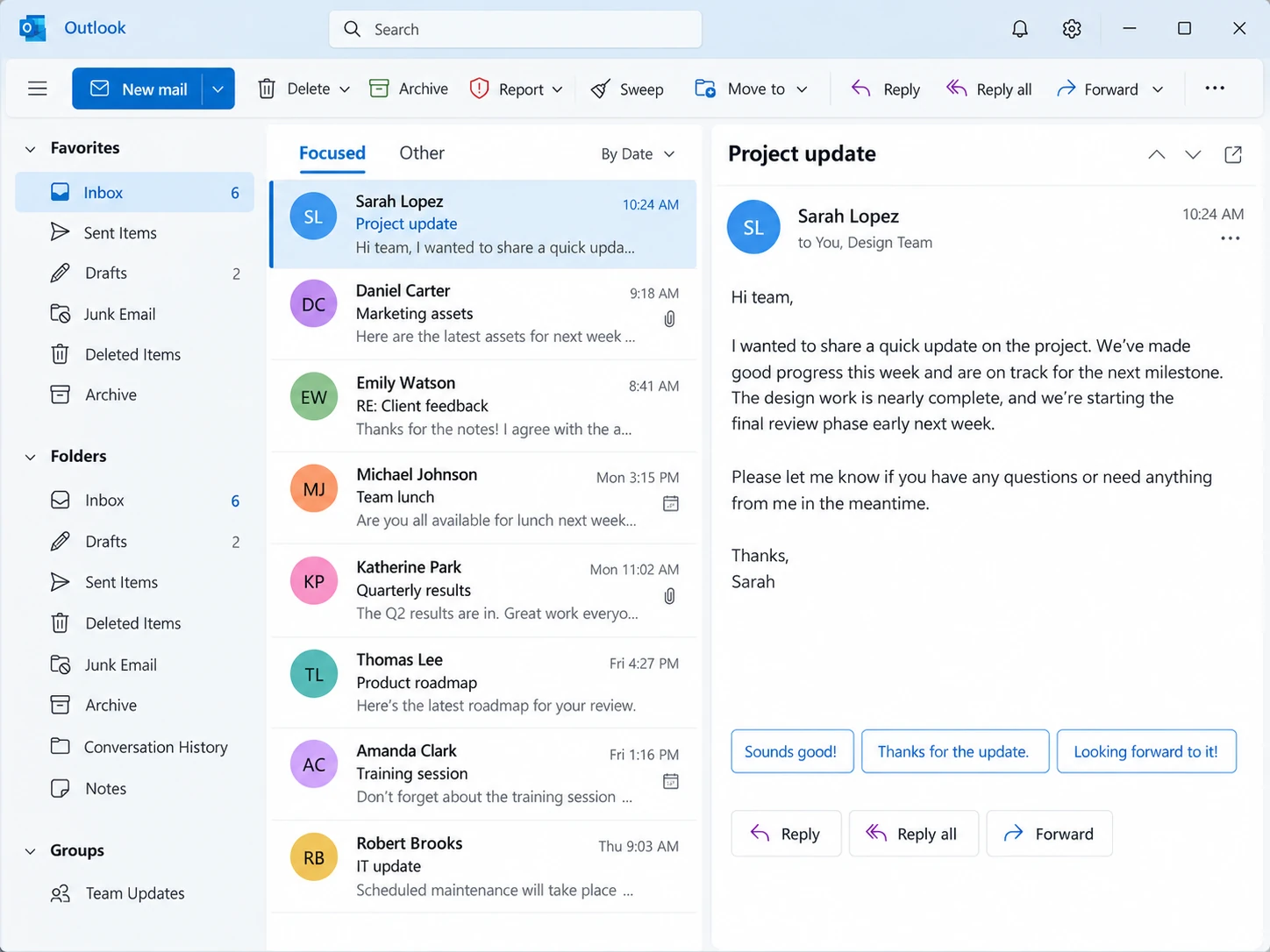
If you see Focused and Other above your messages, open both. Focused Inbox separates incoming mail into two views, so a message can arrive without appearing in the tab you're looking at. Not every email account has this feature.
You can also try searching for the sender's email address or part of the subject. Where Outlook offers a choice, search all folders rather than just the current Inbox. Check whether the message list is sorted with the newest messages first.
If the message is present in webmail but not in the Outlook program, that is a useful clue. Avoid changing lots of settings at once: the difference between the two views can help identify the fault.
3. Only emails from certain people are missing
If other emails arrive normally, start with the missing sender rather than the whole Outlook installation.
Look in Junk Email and check your blocked senders list. For Outlook.com and supported Microsoft accounts in new Outlook, you can review this under Settings → Mail → Junk email. A blocked sender's messages may go to Junk Email rather than your Inbox. If you're using Gmail or another provider in Outlook, you may need to check blocking through that provider's own webmail settings.
Also look at inbox rules. These are instructions that automatically move, forward or delete certain messages. In Outlook.com or new Outlook with a supported account, you can normally inspect them under Settings → Mail → Rules. Review what they do before making changes.
If a sender says they've emailed you but you can't find anything, ask them to confirm the address and whether they received a delivery-failure message. This is often more useful than rebuilding Outlook.
Important: If you find forwarding rules you didn't create, unfamiliar sign-ins or security changes you don't recognise, treat that as a possible account-security problem rather than an ordinary sync fault. Use your provider's official account-security process, and tell your business administrator if it's a work account. The National Cyber Security Centre has guidance on recovering a hacked account.
4. Your mailbox or Microsoft storage is full
A full mailbox can stop new email arriving. Each provider has its own limits, so check the allowance for your actual account, rather than assuming everyone has the same amount of space.
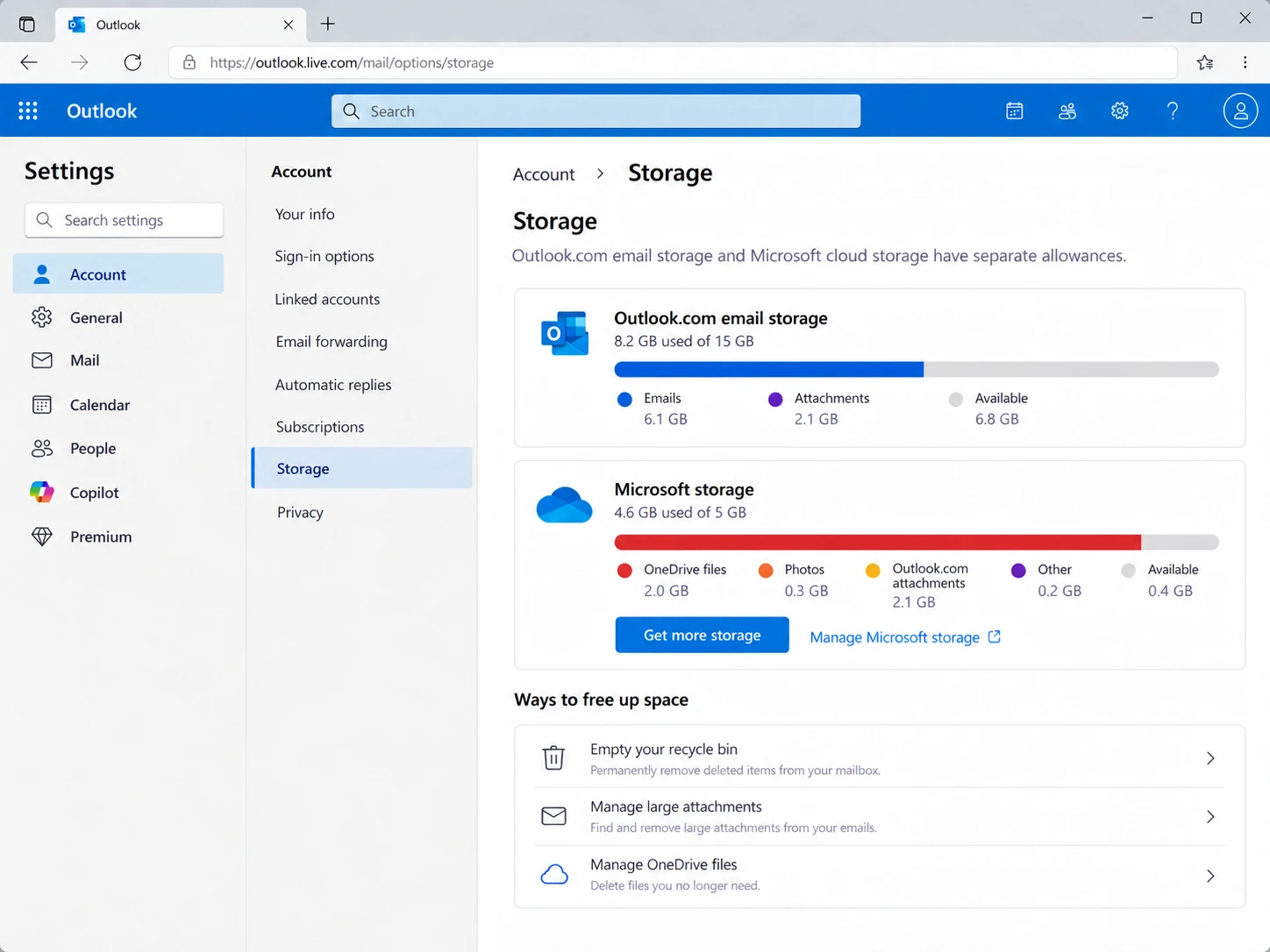
There is a particular issue worth checking if you use a personal Outlook.com, Hotmail or Live address. Microsoft currently gives free personal accounts 15 GB of email storage and a separate 5 GB of Microsoft cloud storage, shared with things such as OneDrive files and photos and Outlook.com attachments.
If either relevant storage allowance is exceeded, Outlook.com can stop sending and receiving mail. That means OneDrive photos filling the cloud allowance may affect email even when the mailbox itself isn't full. Paid plans have different allowances.
In Outlook.com, open Settings → Account → Storage to check mailbox usage. You can check your Microsoft cloud-storage usage through your Microsoft account or OneDrive. Microsoft's storage guidance explains the difference.
Don't rush into deleting photos, emails or folders you still need. OneDrive deletion can also affect files synchronised to other devices. If messages were rejected while storage was over the limit, freeing space doesn't automatically deliver those missing messages: the sender will need to send them again.
For work accounts or email from another provider, check its own storage information or ask the person who manages the account.
5. There's a sign-in or provider problem
Outlook may show a password prompt, an account warning or a message saying it can't connect. Make a note of the exact wording before trying to fix it.
If you can sign in to webmail normally, but Outlook keeps asking you to sign in, the problem may be specific to the application or the way that account is connected. If you can't sign in through the provider's official website either, follow the provider's genuine account-recovery instructions instead.
Be wary of unexpected emails telling you to reset your password urgently. Open your provider's site yourself rather than using the link in the message, and never send anyone your password or one-time security code.
It's also worth checking whether the provider is reporting a current service problem through its official status or support page. If several people at the same business are affected, contact the person responsible for its Microsoft 365 or email administration before changing account settings yourself.
What if Outlook can send emails but not receive them?
Being able to send a message doesn't prove incoming email is working properly. Sending, receiving and updating the Outlook app can fail for different reasons.
If Outlook can send but no new mail appears, the first useful question is still whether new messages appear in the provider's webmail. If they do, check the Outlook connection or synchronisation. If they don't, focus on mailbox storage, filtering, the provider and whether the sender received a delivery-failure notice.
If the problem affects one person sending to you rather than everyone, review Junk Email, blocked senders and rules before changing the account. A successful outgoing test is useful information, but it isn't a complete test of receiving.
A note about older email accounts
Some older email addresses supplied by internet providers use an account type called POP3. By default, classic Outlook downloads incoming POP3 messages to the computer and removes them from the provider's server. You can change a setting to leave copies on the server instead. If one computer has already downloaded the messages, they may be missing from webmail or another device.
This isn't how every Outlook account works, and it's not a reason to start changing advanced settings. If you have an older provider address and mail behaves differently across devices, make a note of it before asking for help. Microsoft's explanation of POP email on multiple computers gives more detail.
Things I'd avoid
Searching online for Outlook fixes can quickly lead to suggestions for recreating profiles or resetting everything. Those steps sometimes have a place, but they aren't good first checks when important email may be involved.
I'd avoid:
- Removing and re-adding the email account before checking webmail and confirming you can sign in again.
- Deleting Outlook data files or profiles. Some older setups hold messages or archives locally that aren't safely copied elsewhere.
- Repeatedly changing passwords without knowing which account is affected or how other devices will be updated.
- Changing incoming-server settings or security options from instructions that don't match your Outlook version or email provider.
- Installing unfamiliar repair tools or giving remote access to somebody who contacts you unexpectedly.
If you have important email that may only be stored on this computer, get advice about backing it up before substantial changes. And if it's a work mailbox holding customer information, involve whoever is authorised to manage that account.
When to stop and get help
You don't need to try every possible Outlook repair yourself. It's worth getting help if:
- messages are still missing after checking webmail and the obvious folders;
- Outlook repeatedly asks you to sign in, or shows an error you don't understand;
- you can't access the mailbox through the provider's website;
- an unfamiliar forwarding rule or suspicious account activity appears;
- important customer, supplier or personal emails may be missing;
- you're considering removing an account, changing server settings or deleting local Outlook files.
For a business, it may also be sensible to use another agreed contact method while the issue is investigated, particularly if customers are waiting for replies. Make a note of when the problem started, the devices affected and any error messages. Those details will make diagnosis easier.
How I can help
I'm Craig, and I run No Drama IT, providing Windows computer repairs and practical IT support around Duffield, Belper, parts of Derby and nearby Derbyshire areas.
If you've tried the safe checks above and emails still aren't arriving, I can discuss the problem and whether one of these options is suitable:
- Home IT Help: booked help with Outlook, email accounts and related Windows problems at home.
- Attended remote support: for suitable problems on a working, internet-connected computer, with you present throughout the session. See Home IT Help for details.
- Small Business IT Support: practical help with Outlook and everyday Microsoft 365 problems, subject to the agreed scope and appropriate account access.
I'll explain what I can investigate, the applicable charge and any travel supplement before you decide to book. Timed support includes assessment and can still be chargeable if a problem can't be resolved. More involved account or provider issues may need separate work or help from the email provider. You can see the details on the Prices page.
Call 07743 273523 or email hello@nodramait.co.uk. Tell me which email address or provider you're using (but not your password), whether messages appear in webmail, any error shown and your postcode. We can discuss the most sensible next step.
Outlook menu paths and personal Microsoft storage information checked against Microsoft Support guidance on 21 October 2026. Interfaces and allowances may change.