
Performance
Why is my laptop so slow?
Find out what makes a Windows laptop slow, five things you can check yourself, and when it's time to get help.
A slow laptop is one of the most common computer problems there is, and one of the most frustrating. The good news is that the cause is often something you can work out yourself, without buying anything or downloading a "speed-up" tool.
This guide is for Windows laptops and desktops. The steps are written for Windows 11, with notes where Windows 10 is different.
In my experience, slow computers can come down to all sorts of things: too much running in the background, little storage space, security software, malware or, on older machines, not enough memory. Sometimes the problem is an old mechanical hard drive. More seriously, a drive can be starting to fail, so it's worth recognising the warning signs before making changes.
Before you start: when to stop
Occasional brief freezes do not, on their own, mean the drive is failing. Repeated prolonged hangs, disk errors, clicking or grinding noises, or repeated start-up failures are more concerning: stop the checks below and seek advice. The drive may be failing.
Repeated restarts, updates, cleanup tools and even a large backup can put more strain on a seriously damaged drive. If valuable files aren't backed up, stop and get advice before further troubleshooting; irreplaceable data may need specialist recovery.
If you're unsure, call me on 07743 273523. I can discuss whether this is something I may be able to help with or whether specialist data recovery would be more appropriate.
First, work out what kind of "slow" it is
"Slow" can mean very different things, and each points somewhere different. Which of these sounds most like yours?
- Slow to start up: it takes ages to get to a usable desktop.
- Slow all the time: even opening a folder or switching windows drags.
- Freezes now and then: the pointer stops, or typing appears seconds later.
- Only slow online: websites, email or video calls crawl, but everything else is fine.
- Only slow in one program: for example, just your browser or just Outlook.
It also helps to think about when it started. A new program, a big update or copying lots of photos across are all worth noting.
Five things to check first
These are straightforward checks rather than advanced repairs, but no computer troubleshooting is completely risk-free. If there are photos or documents you'd be upset to lose, make sure you have a usable backup before deleting files or making other changes. If you suspect drive failure, follow the warning above instead.
1. Restart it properly
Closing the lid usually puts a laptop to sleep. And on many Windows computers, Shut down doesn't give Windows a completely fresh start either: a feature called Fast Startup can save part of the previous session to make the next start-up quicker.
Restart gives Windows a fresh start. Save your work, then select Start › Power › Restart.
If the laptop is quick for a while after a restart and then slows down again, that's a useful clue. Something running as you use it may be contributing to the problem.
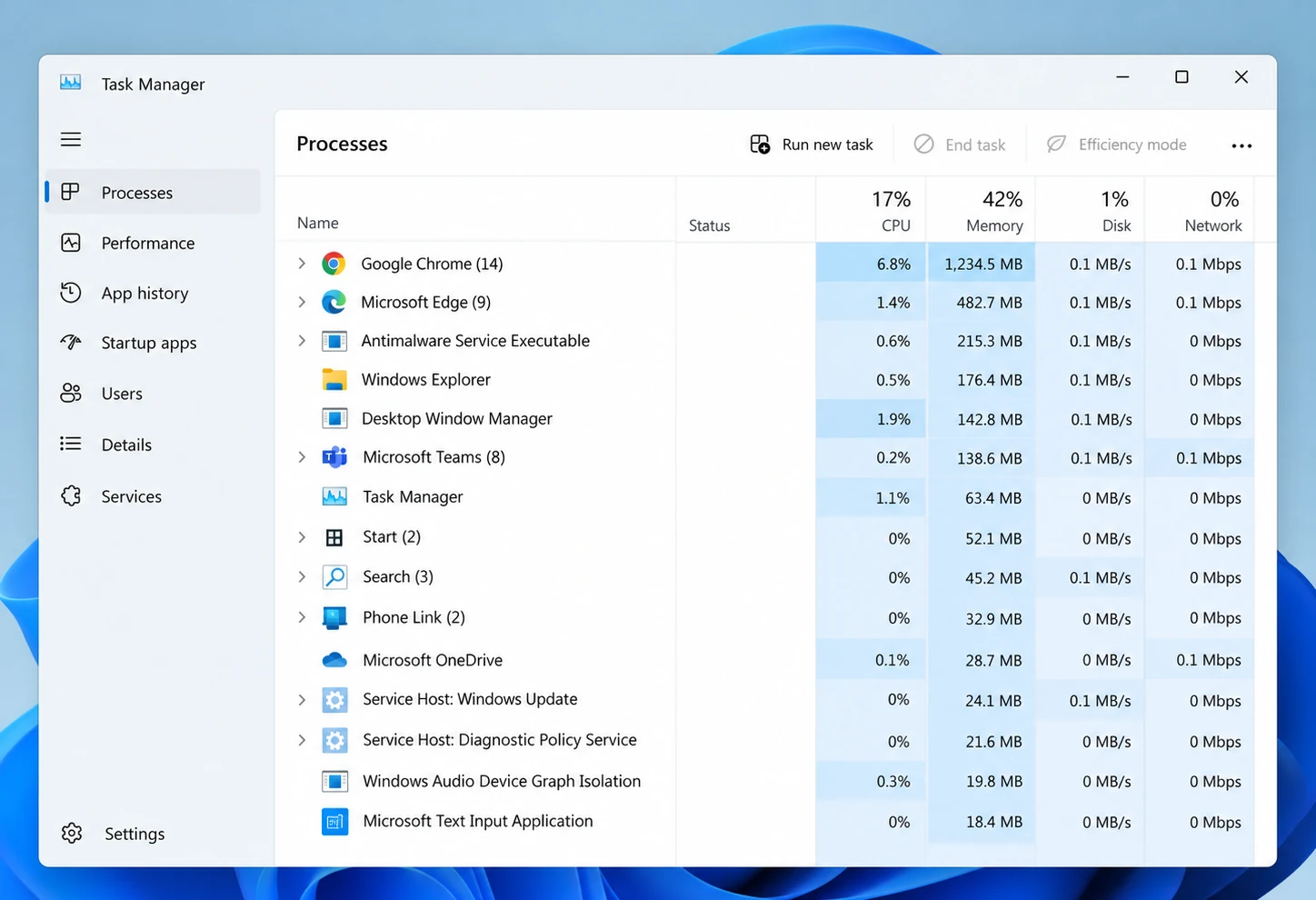
2. See what's using the laptop with Task Manager
This is one of the most useful checks, and many people never look at it.
- Press Ctrl + Shift + Esc to open Task Manager. On Windows 10, select More details if you only see a small list.
- On the Processes tab, click the CPU, Memory and Disk column headings in turn to sort by each one.
- Watch for a little while. Does one program keep appearing at the top, or does one of the figures stay at or near 100%?
What it might tell you:
- One program using a lot of resources: that program may be contributing to the slowdown.
- Memory staying close to 100%: you may have too many programs or browser tabs open, or the laptop may need more RAM.
- Disk usage staying close to 100%: an older mechanical hard drive could be struggling, but Windows updates, security scans and other background tasks can cause this too.
- CPU usage staying high: an application, update or background process may be keeping the processor busy.
Short bursts of high usage are normal, particularly just after switching on. What matters is whether something stays unusually busy when the laptop is slow.
High disk usage alone isn't proof of drive failure. If it comes with repeated prolonged freezing or disk errors, stop the checks and follow the warning at the start of this guide.
You can close programs you've opened yourself. Don't end processes you don't recognise; Windows runs essential background services with unfamiliar names.
3. Check how much storage space is left
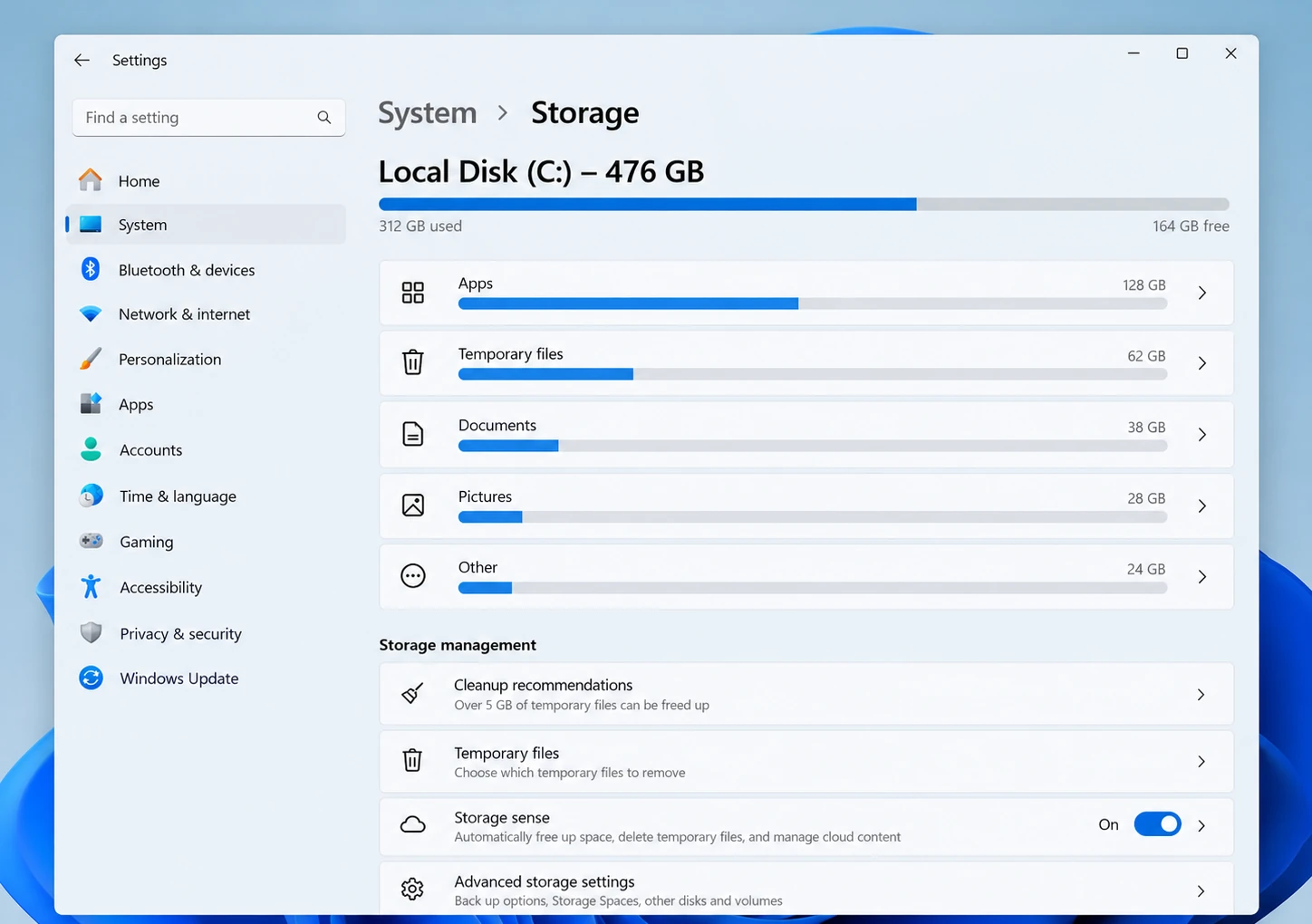
Windows needs free space to run smoothly and install updates. Open File Explorer and select This PC. If the bar under your main drive (usually C:) is nearly full or shown in red, space is getting tight.
In Windows 11, start with Settings › System › Storage › Cleanup recommendations. In Windows 10, open Settings › System › Storage and look at the available temporary-file options. Microsoft's guide to freeing up drive space in Windows covers more choices.
Read what's selected before deleting anything. Cleanup options may include files in Downloads or the Recycle Bin that you still want. Old videos you've already backed up elsewhere and downloads you genuinely no longer need are often worth checking.
Don't delete folders you don't recognise because they look large. And remember that deleting a file from a synchronised OneDrive folder may also remove it from the cloud and your other devices.
4. Turn off startup apps you don't need
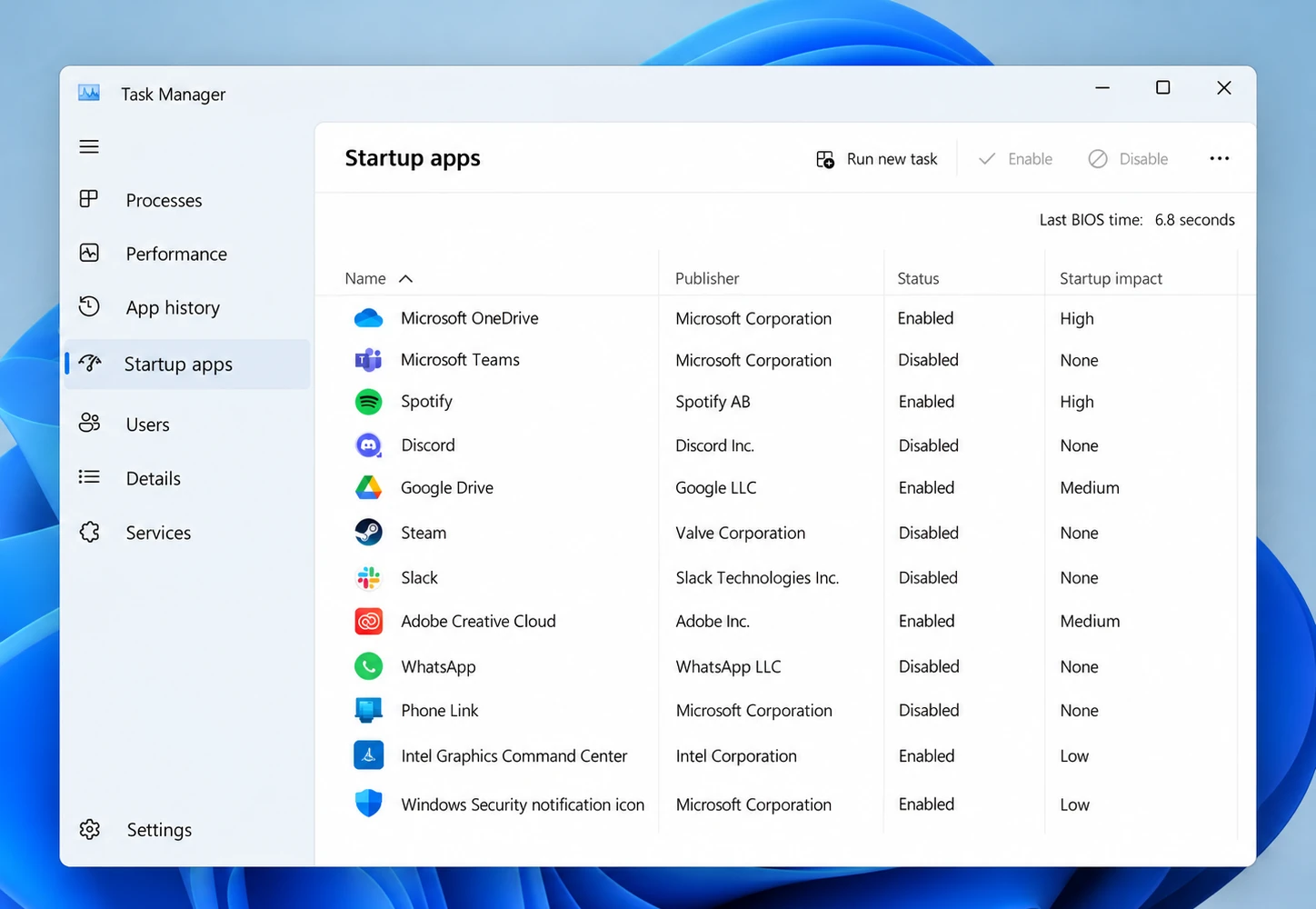
Some programs start automatically every time you sign in, which can make a laptop slow to get going.
- Open Task Manager (Ctrl + Shift + Esc).
- Select Startup apps. On Windows 10 it's the Startup tab.
- Right-click something you recognise and don't need straight away (a music app or game launcher, say) and select Disable.
Leave alone anything to do with your security software, backup, OneDrive or other cloud storage, or hardware such as the touchpad or sound. If you're not sure what something is, leave it enabled.
Disabling a startup app doesn't uninstall it, and you can switch it back on in the same place.
5. Check for waiting updates
Go to Settings › Windows Update and select Check for updates. On Windows 10 this is under Settings › Update & Security › Windows Update.
Updates can run in the background and temporarily slow a computer down. If the laptop is otherwise healthy and important files are backed up, let the updates install when you have enough time, and restart if asked. Don't interrupt an update part-way through.
If updates fail repeatedly, note the error message rather than trying fixes from random websites. And if you see the failing-drive warning signs described earlier, don't keep attempting updates.
Bonus: check the power mode
If your laptop is slow mainly when it's on battery, see whether it runs better when plugged in. It may be using a power-saving setting.
In Windows 11, go to Settings › System › Power & battery › Power mode. A higher-performance setting may help while plugged in, but it can use more power and make the laptop warmer. It's not a cure for a fault or something to force on an overheating laptop.
On many Windows 10 laptops, you can select the battery icon on the taskbar and adjust the power-mode slider. This option isn't available on every computer.
Is it the laptop or the internet?
If folders and ordinary programs open normally but websites, email or cloud files are slow, the laptop may not be the problem at all. A few quick comparisons:
- Do programs that don't use the internet (File Explorer, say) work normally?
- Is it every website, or just one?
- Is another phone or computer on the same Wi-Fi also slow?
- Is it just one app, such as Outlook, while browsing is fine?
- Is it worse in one part of the house?
If other devices are slow too, look at the broadband or Wi-Fi rather than the laptop. If it's just one app, that app or its account may be the place to start.
Tidying up startup programs won't fix a broadband fault, and restarting the router won't fix a laptop that struggles to open its own folders.
Why is my computer running slow? The usual causes
Once you've done the checks above, these are some common explanations.
An older hard drive
Many older laptops have a traditional hard disk drive (HDD) with spinning parts, which is much slower than the solid-state drive (SSD) fitted to most newer machines.
To check, open Task Manager, select Performance, then select your disk (usually Disk 0). Windows normally identifies the drive as SSD or HDD.
On a suitable laptop, replacing an old hard drive with an SSD can make a real difference. Whether it's worthwhile depends on the laptop, its condition and what's actually causing the slowness, so it's worth checking before buying parts.
Not enough memory (RAM)
Modern browsers and programs use a lot of memory. A laptop with 4 GB of RAM may struggle when several browser tabs and a video call are running at once.
You can see how much yours has in Task Manager › Performance › Memory, or in Settings › System › About. Some laptops can take more memory; others have it permanently fixed to the main board.
In my experience, low memory is often behind slowdowns on older machines. But adding RAM isn't always possible, and it won't fix every cause of slowness.
Too much running in the background
Every open program and browser tab uses part of the laptop's capacity. Cloud syncing, updates and security scans can also run in the background. That's normal, and usually useful, but it adds up on a less powerful laptop.
More than one antivirus program
This is something I've come across in previous repair work. Windows includes Microsoft Defender Antivirus, and some computers also arrive with a trial of another security product. People sometimes install another one "to be safe".
Having two products installed doesn't necessarily mean both are actively scanning. Microsoft Defender normally switches out of active protection when a compatible third-party antivirus takes over. But old security software, overlapping protection tools or a troublesome installation can still affect performance.
To check which program is currently protecting the PC, open Windows Security from the Start menu, then select Settings › Manage providers. You can also look under Settings › Apps › Installed apps for unwanted old trials. Microsoft's Windows Security settings guide explains the providers screen.
Don't uninstall protection just because two names appear in the installed-apps list. If an expired trial really is unwanted, remove it using the normal uninstall procedure or the manufacturer's official guidance, and then check that one reliable, up-to-date antivirus remains active.
One misbehaving program or browser
A faulty browser extension or damaged program can make the whole laptop feel slow while it's open. If things improve the moment you close it, focus on that program: update it and check its add-ons.
Reinstalling can lose settings and saved data, so it shouldn't be the first thing you try.
Malware or unwanted software
Unexpected pop-ups, a browser that sends you to strange websites or programs you didn't install are worth a security check.
Open Windows Security › Virus & threat protection › Quick scan, or use the scan option in the antivirus product shown as active on your computer.
Slowness on its own doesn't mean you have a virus. There are plenty of other explanations.
Heat and dust
Laptops slow themselves down to protect against overheating. If yours is hot, the fan is unusually loud, or it slows sharply after a few minutes of work, the cooling may be struggling.
Use it on a hard, flat surface rather than a bed or cushion, and keep the vents clear. Please don't open it up to clean it unless you know what you're doing.
A drive that's starting to fail
In some of the worst cases I've dealt with, a very slow computer turned out to have a damaged or failing drive. That's why the early warning matters.
Still on Windows 10?
If you're not sure which version you have, select Start, type winver and press Enter.
Normal Windows 10 support ended on 14 October 2025. Eligible personal-use computers can receive certain security updates through Microsoft's Extended Security Updates (ESU) programme until 12 October 2027. ESU doesn't make a laptop faster or restore normal technical support, and businesses need a separate commercial arrangement. See Microsoft's current Windows 10 ESU guidance.
To use the consumer ESU programme, your PC must be running Windows 10 version 22H2 and meet Microsoft's other requirements. You can check for the enrolment option under Settings › Update & Security › Windows Update.
If you're still on Windows 10, it's worth checking whether the laptop can move to Windows 11, whether ESU is appropriate, or whether replacement makes more sense. My Windows 10 Upgrade & Security Check is intended to help with those choices.
Things I'd avoid
Searching "how to speed up a slow laptop" turns up plenty of advice that can make things worse. I'd steer clear of:
- Third-party "PC cleaners", "optimisers" and "driver updaters", especially ones advertised in pop-ups.
- Installing another antivirus "to be safe" without understanding what's already protecting the computer.
- Registry cleaners or editing the registry from online instructions.
- Deleting files or programs you don't recognise.
- Turning off your security, backups or OneDrive just because they appear to use resources.
- Resetting or reinstalling Windows before your files are safely backed up and you know your account passwords.
- Buying parts or upgrades before checking whether they'll fit and actually help.
When to stop and get help
It's time to ask for help if:
- the laptop is still slow after the checks above
- it freezes, crashes or won't start properly
- you notice any of the failing-drive signs above
- you suspect malware, or you've let a stranger connect to your computer
- there are photos or documents you can't afford to lose and they aren't backed up
- you simply aren't sure what to do next.
You don't have to try every possible fix first. Stopping when you're unsure is often the sensible choice.
If it's a work laptop holding customer or staff details, remember that your business has responsibilities for protecting that information, including when somebody works on the computer.
How I can help
I'm Craig, and I run No Drama IT, offering computer repairs and IT support around Duffield, Belper, parts of Derby and nearby Derbyshire areas. Slow Windows laptops and desktops are a common type of problem I can investigate.
Depending on the problem, I can help in three ways:
- Collect, Repair & Return: I collect the computer, investigate the problem and, where it's within the agreed repair scope, carry out the repair before returning it. Eligible repairs have a fixed completed-repair price and a lower assessment-and-return price if the repair can't be completed. Hardware, parts and work outside that scope need a separate quotation.
- Home IT Help: booked visits for practical help at home, charged by the agreed time band.
- Attended remote support: for suitable software or account problems, with you present throughout the session. See Home IT Help for how this works.
There's no walk-in shop or drop-off point; everything is by appointment. I'll explain the charge, including any travel supplement, before you decide to book, and ask before doing anything extra. See the Prices page for current charges and conditions.
Call 07743 273523 or email hello@nodramait.co.uk. Tell me what's happening, roughly how old the laptop is and your postcode, and we can discuss the best next step.