
Repair or replace
Is it worth repairing a laptop?
When to repair, upgrade or replace.
Is it worth repairing a laptop? Often, yes. A repair usually makes sense when the fault is limited, the rest of the laptop is in decent shape, it can still run a supported version of Windows, and the repair costs a sensible amount compared with a suitable replacement. It's usually time to replace it when several things are wearing out at once, it can't stay on supported Windows, or the repair would cost close to the price of a replacement.
The tricky part is that most people decide before they know what's actually wrong. A laptop that's painfully slow, won't start or has a cracked screen can look finished when it isn't. And sometimes a repair is perfectly possible but still poor value. This guide will help you work out which situation you're in.
This guide focuses on Windows laptops. I don't repair Macs.
Start with what's actually wrong
The symptom you see isn't always the problem. A laptop that takes ten minutes to start could have too many programs launching at startup, a nearly full drive, an old hard drive, or a drive that's starting to fail. Some causes are straightforward to sort out. A failing drive, on the other hand, calls for caution because of the risk to your files. Same symptom, very different decision.
So before you compare repair quotes with replacement prices, it's worth getting a clear idea of the cause. If slowness is the main complaint, try the safe checks in my guide Why is my laptop so slow? first. You might not need a repair at all.
Stop first if the drive may be failing
Ordinary slowness is one thing. But if the laptop makes repeated loud clicking, grinding or scratching noises, shows disk errors, freezes for long stretches repeatedly, or takes several attempts to start, the drive may be failing.
If important files are not safely backed up, stop using the laptop and get advice before trying anything else. Don't repeatedly restart it, run scans or attempt repairs. Further use can make physical damage worse and reduce the chance of recovering your files. Specialist recovery may be necessary; it's not a service I offer.
Other safety signs: If the case is bulging or a battery appears swollen, stop using or charging the laptop. If it has suffered a liquid spill, switch it off and disconnect external power if safe to do so. Don't turn it back on to test it.
Five checks to do before you decide
If the laptop is otherwise safe to use, these checks can help you gather information before spending money. They mostly use built-in Windows screens, although Microsoft's PC Health Check app may need installing. Don't attempt them if the warning signs above apply.
1. Which version of Windows is it running?
Select Start, type winver and press Enter. A small window tells you whether you have Windows 11 or Windows 10.
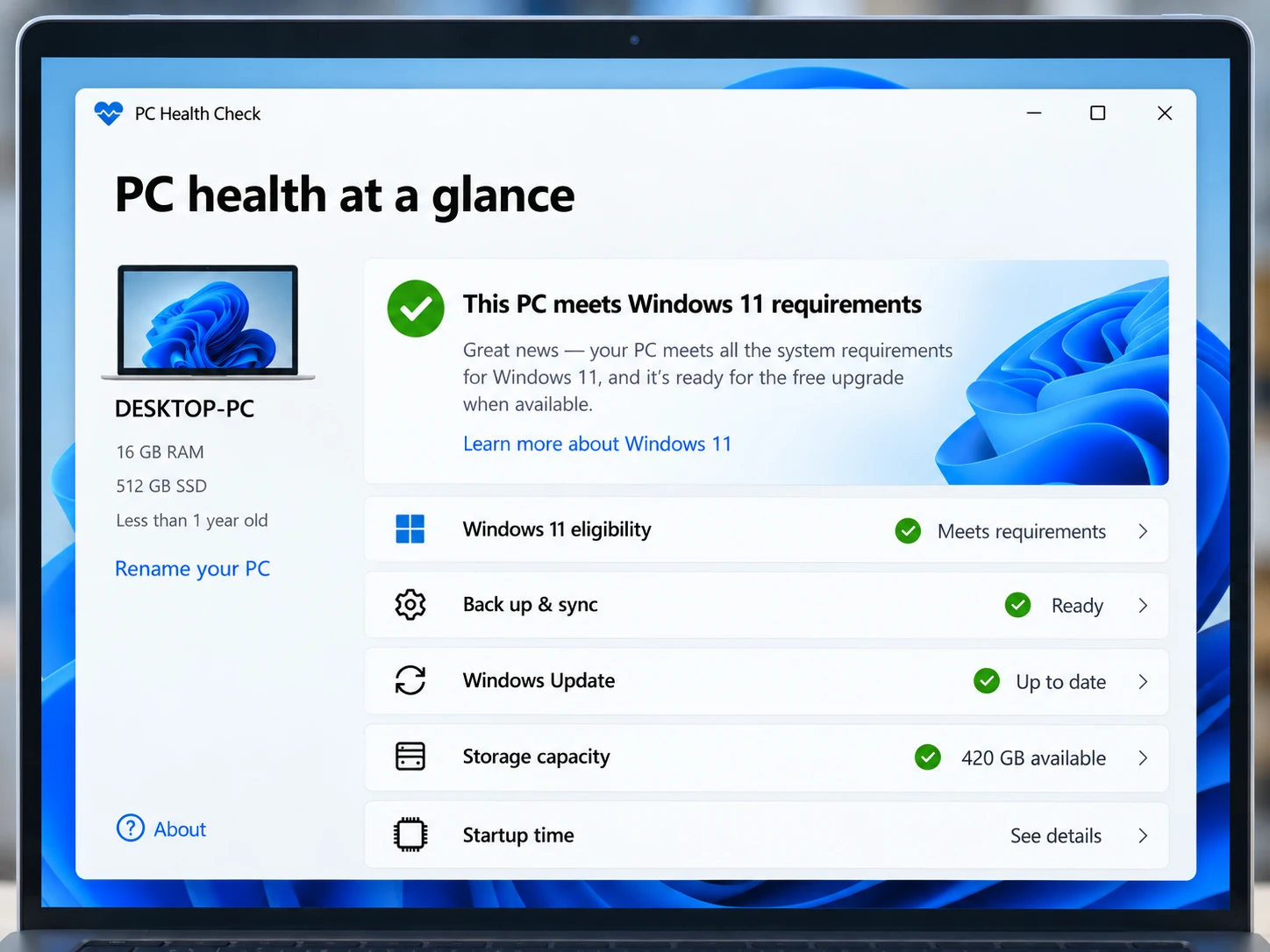
2. Can it run Windows 11?
This matters most if you're still on Windows 10. Open Settings › Update & Security › Windows Update, which may show Windows 11 eligibility information. For a more detailed check, search for Microsoft's free PC Health Check app in the Start menu. If it isn't installed, follow Microsoft's PC Health Check instructions (opens in a new tab or window), then select Check now. Don't start an upgrade just to find out whether the laptop is eligible.
Why it matters: standard Windows 10 support ended on 14 October 2025. Home users with an eligible Windows 10 PC can join Microsoft's Extended Security Updates programme (opens in a new tab or window) to receive important security updates through 12 October 2027. You need to enrol to receive them, and the programme doesn't provide normal technical support or new features.
A Windows 10 laptop won't suddenly stop working when consumer ESU ends. But without further operating-system security updates, using it online becomes riskier. That matters when deciding whether an expensive repair will provide good value. Computers used for business need the separate commercial ESU arrangements rather than the consumer programme.
3. Does it have an SSD or an older hard drive?
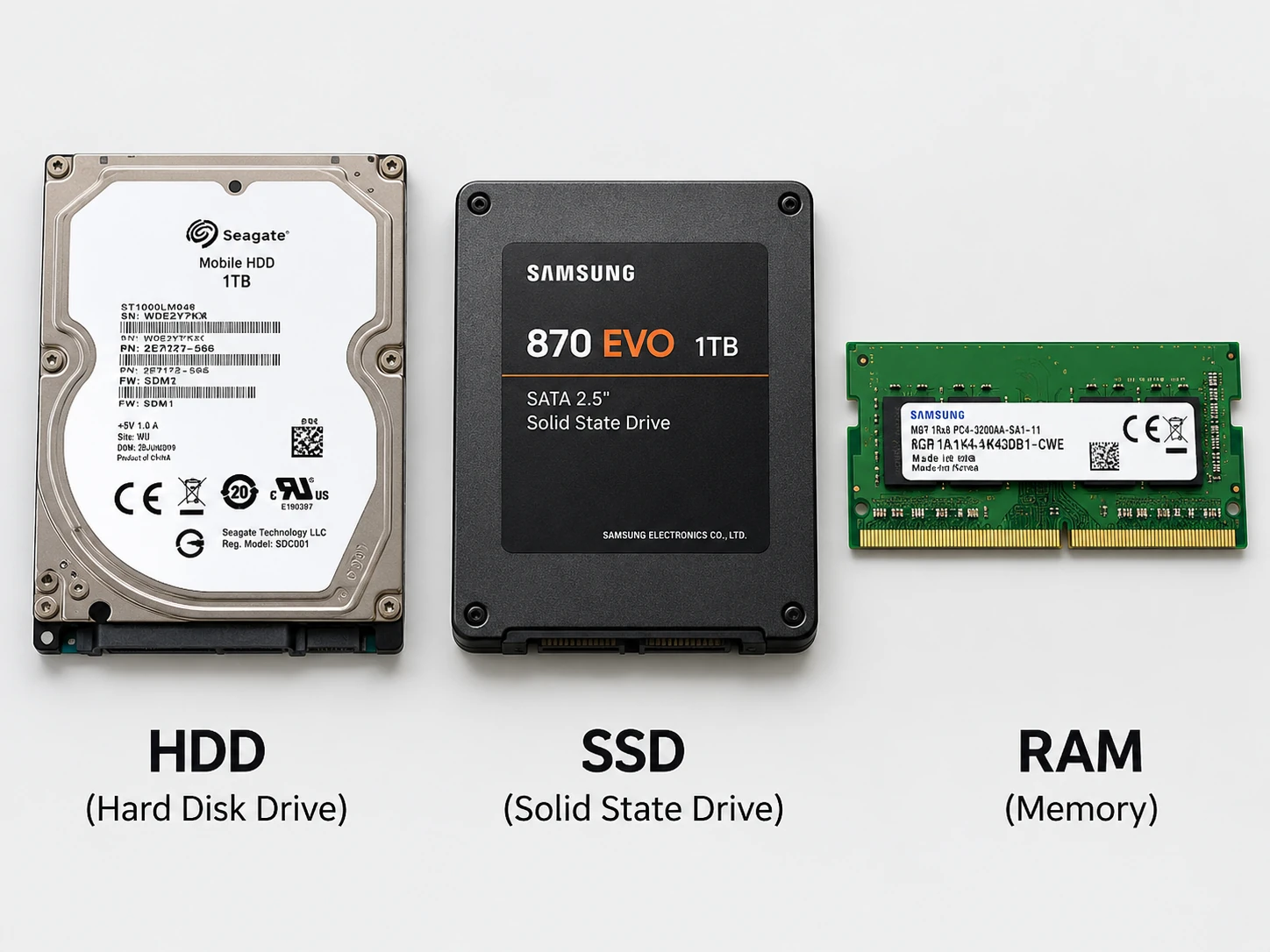
Press Ctrl + Shift + Esc to open Task Manager. If needed, select More details, then Performance, and choose the disk (often Disk 0). Windows will usually identify it as SSD or HDD.
An older hard drive (HDD) can be a major reason a laptop feels slow. If the laptop supports it, changing to a solid-state drive (SSD) may noticeably improve responsiveness. But check the rest of the laptop, the cost, your memory and its Windows support before paying for an upgrade.
4. How much memory does it have?
Go to Settings › System › About and look for Installed RAM. A laptop with 4 GB can struggle with a few browser tabs and a video call at the same time. Some laptops can take more memory; in others it's fixed to the main board and can't be added to. That's worth knowing before you count on an upgrade.
5. Is it still under warranty, or the retailer's responsibility?
If the laptop is fairly new, or it's failed sooner than you'd reasonably expect, check before paying anyone to fix it. Look at the manufacturer's warranty, any extended cover you bought, and whether your home insurance covers accidental damage.
If you bought the laptop from a retailer as a consumer, you may have rights under the Consumer Rights Act 2015 that are separate from the manufacturer's warranty. What you're entitled to depends on the fault and the circumstances; normal wear and tear or accidental damage are different. Check with the retailer before paying for an independent repair. Citizens Advice explains your options for faulty goods (opens in a new tab or window).
Repair or replace? A rough guide by problem
| The problem | Usually | What to weigh up |
|---|---|---|
| Slow, pop-ups, Windows errors or misbehaving software | Often worth investigating | The fix may not need new parts. Try the safe checks first, unless there are signs of drive failure. |
| Old hard drive (HDD) in an otherwise good laptop | Often worth upgrading | An SSD can help if the model supports it. Also consider memory, Windows support and the actual quote. |
| Battery won't hold charge, or charging is unreliable | Depends on the fault | A replacement battery may be worthwhile. Charging faults can also involve the charger, socket or internal circuitry. Stop using a visibly swollen battery. |
| Cracked screen, broken keys or loose hinges | Depends | Compare the quote with a suitable replacement, and look at the condition of the rest of the laptop. |
| Liquid spill | Often replace | Switch it off, unplug it and don't turn it back on to check it or to rescue files. Get it looked at. |
| Main board fault | Often replace | Can be costly and uncertain to repair. |
| Several faults at once, or it keeps going wrong | Often replace | Fixing one fault may just lead to the next. |
| Can't run Windows 11 and needs an expensive repair | Think carefully | For eligible home PCs enrolled in Windows 10 ESU, security updates end on 12 October 2027. Consider whether that limited remaining coverage makes an expensive repair worthwhile. |
These are rules of thumb rather than promises. Every laptop is different, and the real answer depends on what an assessment finds. I don't carry out circuit-board (board-level) repairs, so if that's what yours needs, I'll tell you plainly.
When I'm assessing a laptop, I look at the condition of the whole machine and what you actually need it to do—not just whether one particular fault can be fixed.
When should you replace your laptop?
Rather than a fixed rule, put four things side by side:
- The actual repair quote, not a guess.
- The condition of the rest of the laptop: battery, screen, keyboard, hinges and drive.
- Whether it can run Windows 11, or how long it has left on security updates.
- The cost of a replacement that genuinely suits you, not the cheapest or the most expensive.
If the repair fixes one isolated fault on an otherwise sound laptop that suits you, it's usually worth doing. If the quote is approaching the cost of a suitable replacement, other parts are wearing out, or the laptop was already struggling with what you need, replacing it is usually better value.
Age on its own doesn't settle it. A well-specified laptop that's several years old, with an SSD and enough memory, can still be perfectly good for email, browsing, documents and video calls. A newer budget model with very little memory or storage might be less pleasant to use.
Replacing doesn't have to mean buying new
A refurbished laptop that properly supports Windows 11 can be a sensible middle ground, especially on a tighter budget. Compare its condition, memory and storage, battery health, the seller's reputation and any warranty. Buying from a business usually gives you stronger consumer protections than buying privately, including for second-hand goods.
How much does it cost to repair a laptop in the UK?
There isn't a single figure, because "laptop repair" covers everything from sorting out a software problem to fitting a new screen. The cost depends on what's wrong, the make and model, whether parts are available for it, and how long the fault takes to find. A software problem may need no parts at all. A screen or battery depends on the right part for your particular model. That's why a firm price for an unknown fault, before anyone has looked at the laptop, is rarely realistic.
Here's how I charge:
- Collected Windows software repairs for suitable problems such as slowness, malware and Windows errors: £70 if I can complete the agreed repair as part of this service. If I collect the laptop but cannot complete that repair, cannot reproduce the reported fault, or you decide not to go ahead with separately quoted work, the charge is £30 for collecting, assessing and returning it instead. You pay £70 or £30, not both. Any extra travel charge is explained and agreed before you book.
- Selected hardware repairs and upgrades, such as an SSD, memory, battery or screen: assessed for suitability and quoted individually, including any parts. Some work is outside what I offer and may need a specialist. I'll explain the price and scope before ordering parts or carrying out additional work.
Home visits and attended remote support are also available, charged by time. Those rates, and which areas have no travel supplement, are on the Prices and Areas Covered pages. Calling or emailing to talk it through costs nothing.
Before you buy a new laptop
The price tag isn't the whole cost of changing laptops. Depending on what you use, the new one may need:
- Windows setting up and ordinary updates installing;
- signing in to your existing Microsoft, email and other accounts, sometimes with two-step verification;
- programs reinstalling, which may require licences or account access (programs generally can't be transferred like ordinary files);
- agreed documents, photos and bookmarks transferring, if they're accessible on the old computer;
- an internet connection and, if you use one, a compatible printer.
It's also worth checking that your printer and any specialist software will work with the new laptop before you buy.
Doing the changeover yourself? Read how to move your files and set up a new Windows computer safely.
If you'd rather not do all that yourself, I offer two collected services:
- Basic New Computer Setup, £69: I collect one new, working Windows laptop, carry out standard Windows setup and updates, help with agreed existing account sign-ins and a small set of standard applications, then return it with a short handover. Old-computer file transfer is not included.
- Standard Computer Changeover, £119: I collect one working old Windows computer and one new, working Windows computer, set up the replacement, transfer agreed accessible personal files and handle routine existing email/browser sign-ins before returning both. We check what is practical before the work starts.
Both prices include collection and return in my no-supplement areas; any other applicable travel charge is agreed before booking. A working internet connection is needed for setup, but diagnosing home Wi-Fi faults and connecting printers are separate tasks, normally charged at the agreed time-based rate. Neither package includes wiping or disposing of the old computer. Specialist programs, large email archives, inaccessible files and complicated migrations may need a separate quote. There's more on the New Computer Setup page.
Protect your files first
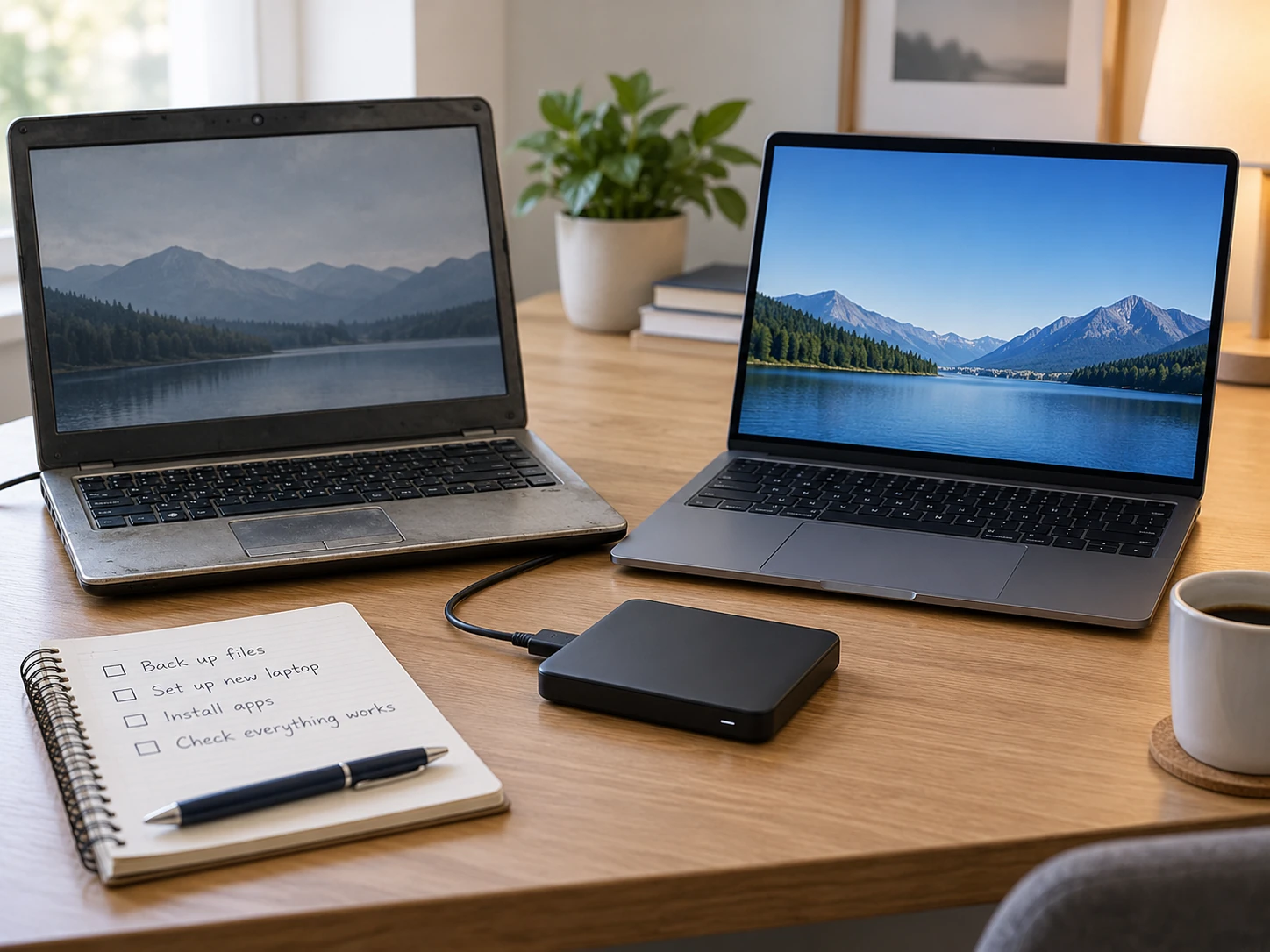
Whatever you decide, your files and accounts are usually what matter most. Before any repair, reset or changeover:
- Back up your photos, documents and anything else you'd hate to lose, and check you can open the copies if the laptop is safe to use. If you suspect a failing drive, follow the stop-and-seek-advice warning above instead.
- Know your passwords for your Microsoft account, email and other important accounts, and check that your recovery phone number and email address are up to date. Don't rely on passwords saved on the laptop: if it stops starting, you may not be able to get to them.
- Note what you use: the programs you rely on, and where your files are kept, including OneDrive or other cloud storage.
Repairs, resets and changeovers all carry some risk to data, especially on a laptop that's already faulty. I'll always talk you through backups before starting, but I can't promise every file can be saved, and I don't offer specialist recovery from failed drives.
If it's a work laptop holding customer or staff details, bear in mind that your business is responsible for protecting that information, including when someone else works on the computer.
Things I'd avoid
- Buying memory or an SSD before checking it fits your laptop and will actually help.
- Paying for a big repair on a Windows 10 laptop before checking whether it can run Windows 11.
- Switching a laptop back on after a liquid spill, even just to rescue files.
- Recycling, selling or giving away the old laptop before confirming you have the files you need and arranging appropriate secure removal of personal data. Deleting a few files or doing a quick format isn't enough; see the ICO's guidance on deleting data from old devices (opens in a new tab or window). If the laptop won't start, its files may still be accessible to someone else.
- Assuming the laptop is the problem when it might be your broadband or a single account. Replacing the laptop won't fix either.
How I can help
I'm Craig, and I run No Drama IT, offering computer repairs and IT support around Duffield, Belper, parts of Derby and nearby Derbyshire areas. If you're unsure whether your laptop is worth repairing, tell me what it's doing and I'll give you my honest view on whether to repair, upgrade or replace it. Sometimes the sensible advice is not to spend money on an older laptop.
An initial conversation is free, but confirming the fault may require a chargeable assessment or booked support session. I'll explain the charge before you decide whether to go ahead.
- Collect, Repair & Return: for suitable software problems. See Computer Repairs.
- Home visits and attended remote support: booked help, charged by time, including a Windows 10 Upgrade & Security Check.
- New computer setup and changeover: if replacing is the right call. See New Computer Setup.
There's no walk-in shop or drop-off point; everything is by appointment. You'll know the charge before any work starts, and I'll always ask before doing anything extra.
Call 07743 273523 or email hello@nodramait.co.uk. Tell me the make and model if you know it, roughly how old the laptop is, what's going wrong and your postcode, and we can discuss the next step.