
New computer setup
New laptop or PC? How to move your files and set up your new Windows computer safely
Move your files, emails and passwords to a new Windows computer safely, and know when it is safe to wipe the old one.
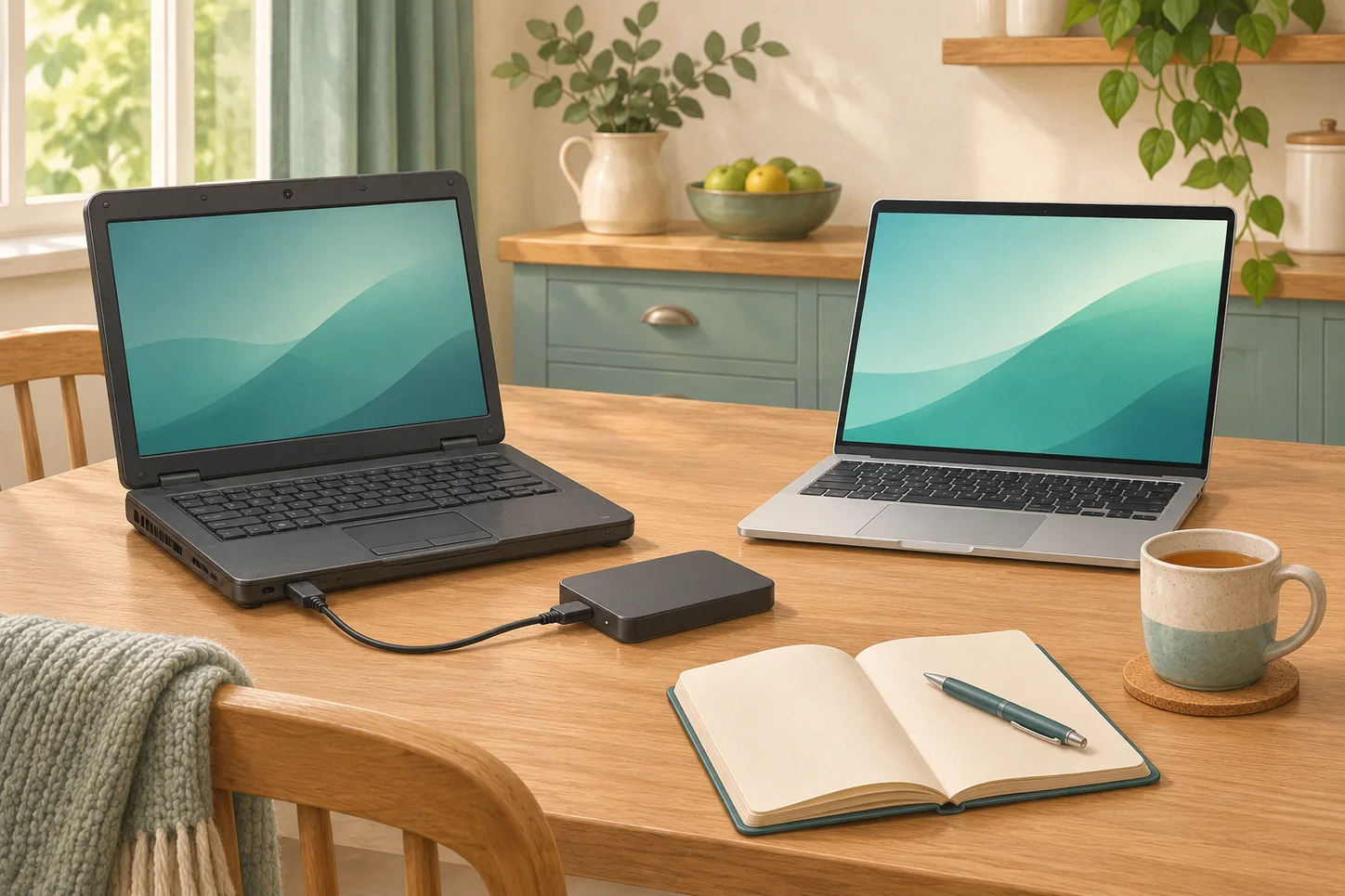
A new computer should make life easier. Most problems come from doing things in the wrong order. The old computer gets reset, given away or put in the loft before anyone checks that everything made it across: photos, documents, emails, passwords and the programs you rely on.
This guide goes through a safe order step by step. It is written for an ordinary home computer moving from Windows 10 or an older Windows 11 PC to a new Windows 11 one.
1. Leave the old computer as it is
Until you have finished, the old computer is your reference copy. It has your files, your saved passwords, your email settings and the list of programs you use. Don't reset, wipe, sell or recycle it yet.
Avoid a big tidy-up too. A folder that looks pointless today may hold something you need next month. Clearing out is easier, and safer, once everything is working on the new computer.
Plan to keep the old computer for at least a few weeks after the move. Some things only come to light when you need them: a tax return, a family history file, a photo from a particular holiday.
Keeping it as a reference does not mean continuing to use it online every day. If it runs Windows 10, check the Windows 10 security support advice before relying on it online.
2. Make a backup and check it
Before you copy, move or change anything, make or update a backup of your important files. That gives you a separate copy if something goes wrong.
How much space do you need?
In File Explorer, right-click a folder such as Pictures or Documents and choose Properties to see its size. Add up the main folders and buy a drive comfortably bigger than the total. For a larger collection of files, an external hard drive or SSD can be convenient. Compare the capacity, connections and price before choosing one.
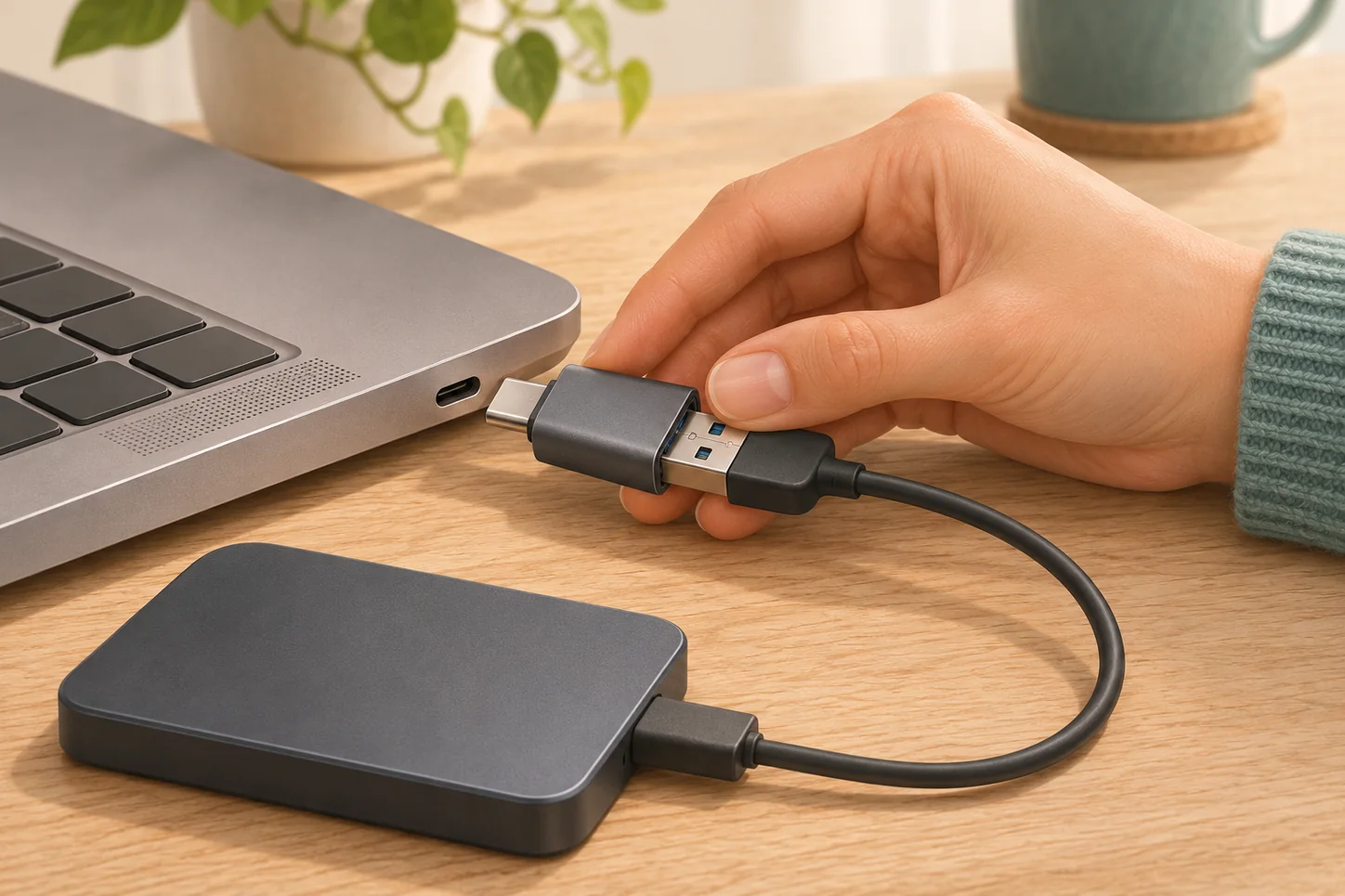
Check the sockets first. Some new laptops only have the smaller, oval USB-C sockets, so you may need a drive with a USB-C plug or a small adapter.
Check the backup, not just the message
A "backup complete" message is not the same as a checked backup. Once it has finished:
- Open the backup drive and check that the folders you expect are there.
- Open a few important files from it, including some recent ones and some older ones.
- Look at a few photos from different years.
- Put the drive somewhere safe, away from both computers, while you set up the new one.
A checked backup lowers the risk of losing something. It doesn't remove it, so keep the old computer as well until you are sure.
3. Find all your files
Important files aren't always in Documents. Check:
- Documents, Pictures, Videos and Music
- The desktop. Many people save everything there.
- Downloads. It is often full of clutter, but it can also hold invoices, tickets, bank statements and forms that never got moved.
- Folders you made yourself, for example for hobbies, clubs or household paperwork
- Files kept by particular programs. Family history, photo organising and home accounts software often keep their own files somewhere else. Check the program's help or settings for a backup or export option.
- Other user accounts on the same computer. If a partner or family member has their own Windows sign-in, their files are kept separately and need moving too.
- External drives, memory sticks and SD cards that hold the only copy of something
A useful trick: in File Explorer, open a folder, choose View and Details, then sort by Date modified. It quickly shows what you have been working on recently, which is the material most likely to be missing from an old backup.
Make a short written list of the folders and programs that matter. You will use it again when you check the new computer.
4. OneDrive and other cloud storage
If you use OneDrive, some or all of your files may already be stored online. Sign in to OneDrive on the new computer with the same account and allow it to sync. Check that the files you need appear and open rather than assume they are all there.
The small icons next to files in File Explorer tell you where they are:
- Blue cloud outline: the file is online only and needs an internet connection to open.
- Green tick in a white circle: a copy is on this computer as well as online.
- Solid green circle with a white tick: the file is always kept on this computer.
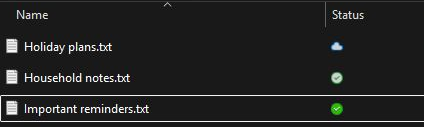
A blue cloud is fine as long as you can open the file from the OneDrive website. Microsoft has a guide to the OneDrive status icons. Before making an external-drive backup, right-click the OneDrive folders you need and choose Always keep on this device. Allow the downloads to finish and check for errors, then copy the files to the backup drive and open a few from that drive to check them. You need an internet connection and enough free space for the downloads.
Watch the storage limit as well. Free OneDrive accounts have 5GB of space. If OneDrive has been backing up your Desktop, Documents and Pictures folders, it may be full, or some files may never have uploaded. Open OneDrive from the cloud icon near the clock and check for warnings.
5. Moving your email: check how it works before you switch
This is the step that catches most people out. There are two broad kinds of email setup.
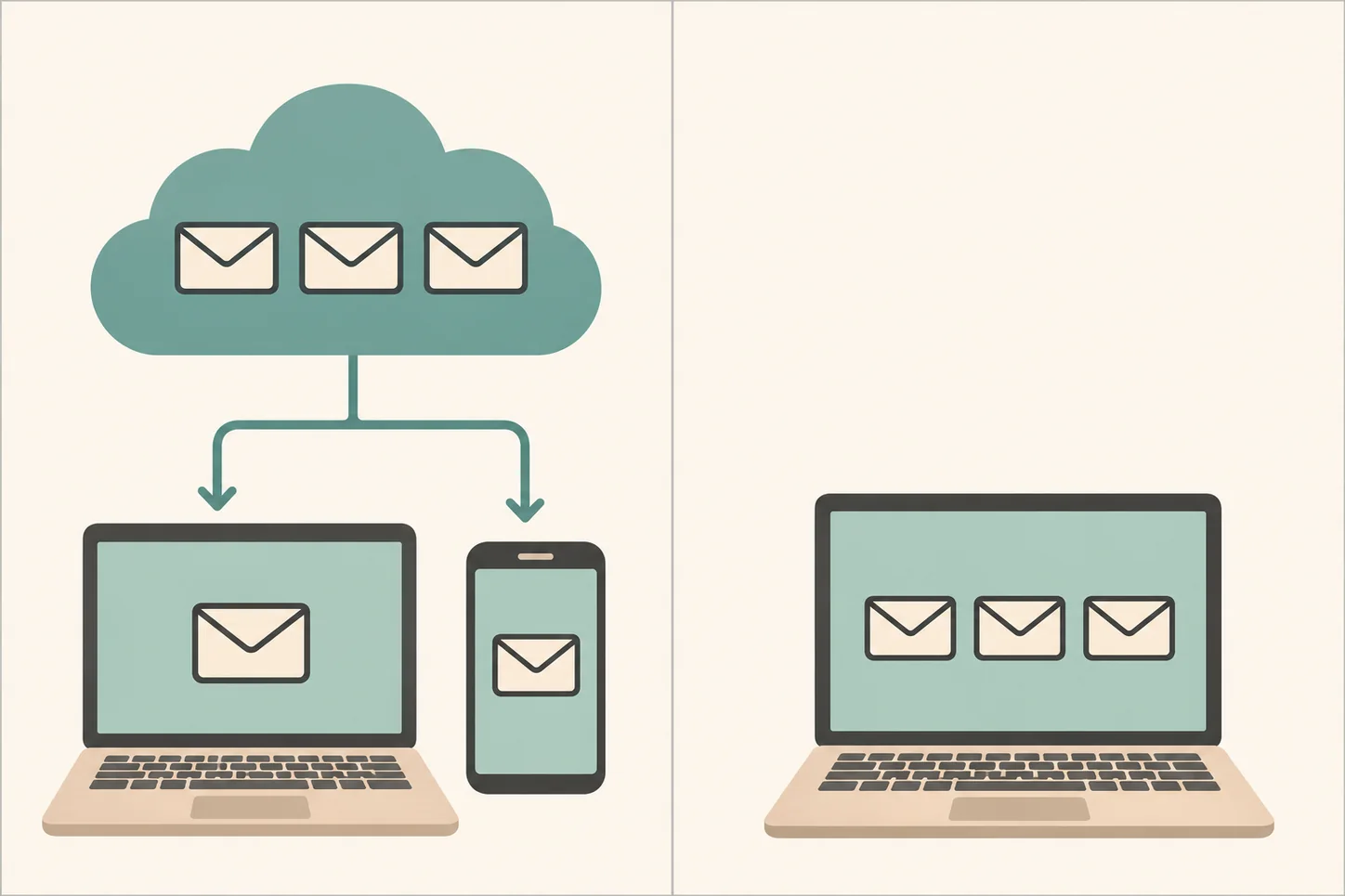
Your email is stored online. If you can see the same emails, including old ones, on the provider's website or on your phone, they are probably kept online. This is usual for Outlook.com, Hotmail and Gmail, and for most modern setups. Signing in on the new computer brings them back.
Your email is stored on the computer. Some older setups download each email to the computer and then remove it from the provider. If older emails and folders only appear in the program on that computer (for example Outlook, Thunderbird or the old Windows Live Mail), they may exist nowhere else. Moving to a new computer without dealing with this can mean losing years of email.
You can have both: an email account stored online and archive folders kept only on the old computer. Check those archives separately, along with your contacts and calendar, before wiping anything.
Check before you switch:
- Sign in to your email provider's website from a browser.
- Compare it with the email program on the old computer. Are the old emails and your own folders there too?
- If they aren't, don't reset or get rid of the old computer until those emails have been safely copied. This is a good point to get help if you aren't sure.
Check your contacts or address book the same way. Some older programs keep them only on the computer. If Outlook is not showing what you expect, see the safe Outlook email checks before removing or re-adding an account.
6. Get your passwords and sign-ins ready
Having your files on the new computer is only half the job. You also need to be able to sign in to everything. While the old computer still works, gather:
- Your Microsoft account email address and password. You will almost certainly need it to set up the new computer.
- Your email account details
- Passwords for online accounts you use regularly, such as banking, shopping, energy supplier and council
- Sign-ins for subscriptions such as Microsoft 365, antivirus and photo or music services
Many people don't know their passwords any more because the browser remembers them. In Microsoft Edge, sign in with the same Microsoft account and check that favourites and passwords are set to sync. In Google Chrome, sign in with the same Google Account and check that your bookmarks and passwords are saved in that account; items saved only on the old computer may need adding to it first. Check they are available on the new computer before you rely on them. If you write passwords down, keep the list somewhere safe at home, away from the computer.
Also check your recovery details. Many accounts send a code to your mobile or an app when you sign in on a new computer. Make sure the phone number and backup email address on each important account are current. If you have lost access to an old number, contact the provider and sort it out now, while you can still sign in from the old computer.
7. Programs, licences and printers
Programs don't move with your files. Each one usually needs installing again on the new computer, and some need a licence key or a subscription sign-in. Make a list of what you use and, for each one, note:
- where to download it from (ideally the maker's own website or the Microsoft Store)
- whether you need a licence key, and where it is
- whether it keeps important information of its own that needs moving
Microsoft Office is a common one. A Microsoft 365 subscription is installed by signing in to your Microsoft account on the new computer. A one-off copy of Office may also be linked to your Microsoft account, or may need its product key. Check that its licence allows a transfer to another computer; having the account or key does not by itself guarantee this. Very old versions may no longer be supported or may not install at all.
Older programs may not work on Windows 11, or may no longer be available to download. Better to find out now than after the old computer has gone.
Printers and scanners usually connect easily, but check that the maker's website lists your model as working with Windows 11. Some older scanners and all-in-one printers lose features without the right software.
8. Choose how to move your files
Decide this before you switch on the new computer, because one of the options needs preparing on the old one first.
Option A: an external drive
This is the most straightforward method and gives you the most control. Copy the folders on your list from the old computer to the drive, check them, safely remove the drive, then, once the new computer is set up (step 9), copy them onto it and check again. Microsoft has step-by-step instructions for moving files with an external drive.
Copy the folders on your list in manageable batches. It makes progress easier to follow and gaps easier to spot.
Option B: Windows Backup and OneDrive
Windows 10 and 11 include a Windows Backup app. It can sync selected folders, such as Desktop, Documents and Pictures, to OneDrive and remember supported settings and your app list for the new computer. It needs a personal Microsoft account; work or school accounts do not work with this app. Files need enough OneDrive space (free accounts have 5GB), and desktop programs still need installing again. Check which folders are selected: Downloads and folders you made elsewhere need separate attention. Microsoft explains what Windows Backup includes and how to restore it.
If you choose this route, run Windows Backup on the old computer and let it finish before you switch on the new one, so the backup is ready when setup offers to restore it.
You may read about a direct "PC-to-PC" transfer built into Windows 11. At the time of writing (November 2026), Microsoft says the PC-to-PC transfer feature is no longer available and points people to Windows Backup instead.
Option C: files already in the cloud
If everything important is already in OneDrive or another cloud service, signing in on the new computer may be enough. Check the online copy first, as described in step 4.
9. Setting up the new computer
When you first switch on a new Windows 11 computer, it walks you through a setup. A few points are worth knowing in advance.
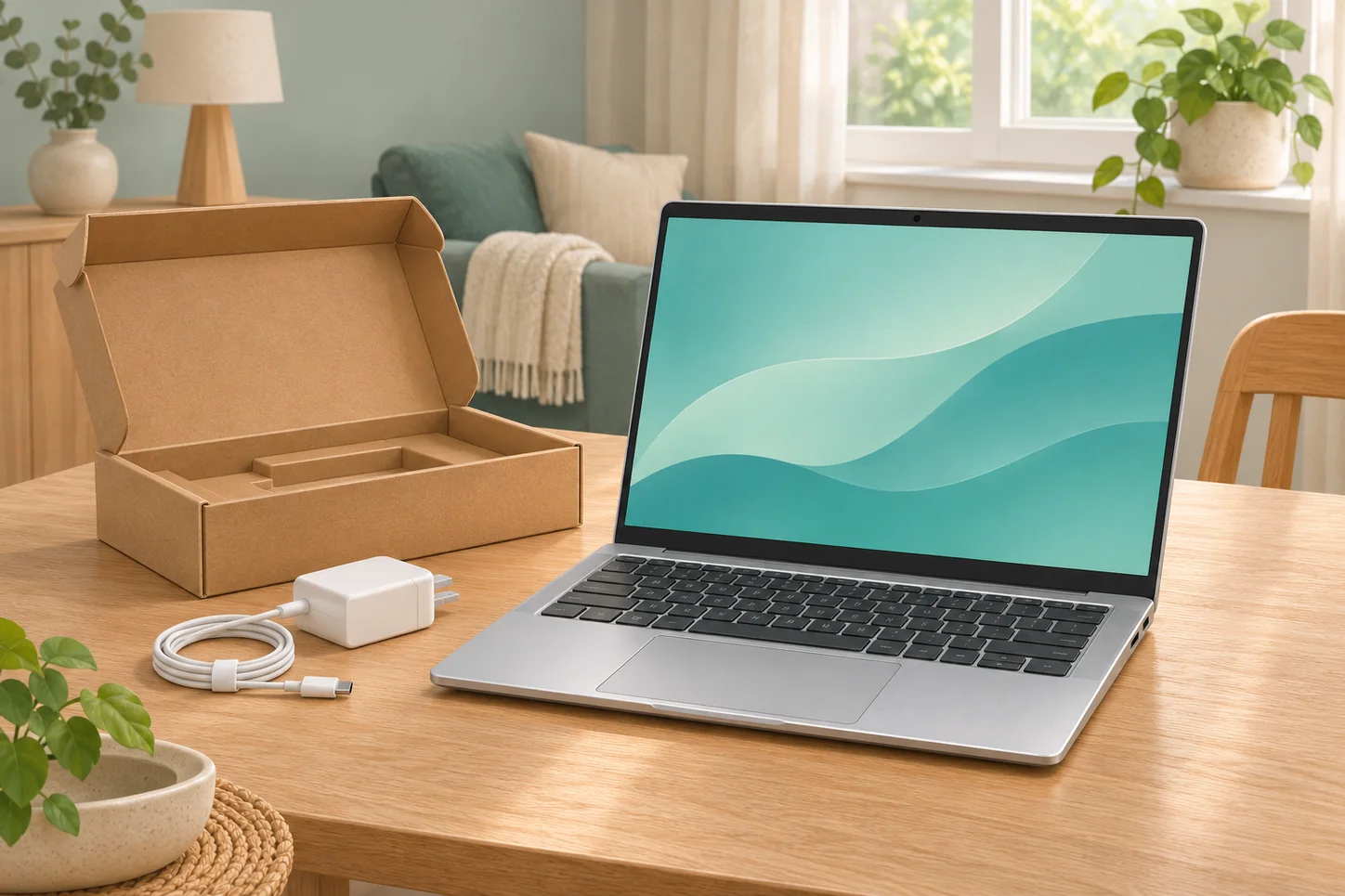
Use a Microsoft account you control. Setup will normally ask you to sign in with one. Use your own account (the one you checked in step 6) and make sure you know the password. Avoid creating a new account in a hurry that nobody can remember later.
Note where your recovery key is kept. On supported Windows 11 computers, device encryption can turn on automatically when you sign in with a Microsoft account, with the recovery key saved to that account. Check that you can find the key, and keep a safe copy separate from the computer. You may never need it, but if Windows asks for it, the encrypted files cannot be opened without it.
You may be offered a restore from Windows Backup. If you ran Windows Backup on the old computer (step 8), setup can bring back your OneDrive files, settings and the list of apps you had.
Let the updates finish. Expect several restarts and allow an hour or two. It is better done before you start relying on the computer.
Check for trial software. Many new computers come with trial antivirus or Microsoft 365 offers. Check whether accepting a trial starts a subscription that will renew and charge you. Windows 11 already includes Microsoft Defender antivirus. Decide whether you want a paid product before agreeing to one.
Check for S mode. Some cheaper laptops come in "S mode", which only allows apps from the Microsoft Store. If you need a program from elsewhere, you can switch out of S mode for free in Settings, but you can't switch back.
10. Check what arrived
Seeing a familiar folder name isn't enough. On the new computer, check that:
- the folders on your list are all there
- the important folders hold roughly the same number of files and the same total size as on the old computer (right-click and choose Properties on each)
- a selection of documents and photos actually open, including recent and older ones
- your email shows your old messages, folders and contacts
- OneDrive or other cloud storage is signed in to the right account
- any less common files open in the program they need
- the printer prints and the scanner scans
Then use the new computer for a week or two as normal. Keep the old computer and the backup unchanged while you do.
If the old computer is faulty
Everything above assumes the old computer works well enough to open your files. If it won't start, keeps switching itself off, runs extremely slowly or shows disk errors, stop. Repeatedly restarting a failing computer can make things worse. Get advice before trying again.
Whether files can be retrieved from a faulty computer depends on the fault, and it can't be promised. Recovery from a failed hard drive is a specialist service that No Drama IT does not provide.
Before you wipe, sell or recycle the old computer
Before the old computer goes, make sure:
- your files are on the new computer and open properly
- email, including older messages and contacts, works
- your important online accounts work, including sign-in codes sent to your phone
- the programs you need are installed and activated
- the printer and other equipment work
- you have a checked backup that you are going to keep
If anything is missing, keep the old computer while you find out why.
Wiping is a separate job from moving your files, because copying files doesn't remove them from the old machine. When you are ready:
- Sign out of your accounts and browsers on the old computer.
- Make sure you have its BitLocker recovery key if encryption is enabled, and disconnect backup drives and other external storage. You may need the key during a reset.
- Follow Microsoft's Reset your PC guidance and choose Remove everything. "Keep my files" is not the right choice before selling or giving a computer away.
- If the computer is going to someone else, select Change settings during the reset and turn on Clean data. It takes longer, but Microsoft says it makes it harder for other people to recover the files you removed. It is not a guarantee, and it is not a certified data-erasure method.
- Once the reset is complete, remove the old computer from your Microsoft account's list of devices. Keep access to its recovery key until you have finished.
Before it leaves the house, check for things left behind: memory sticks, SD cards, a disc in the CD or DVD drive, and the small USB receiver for a wireless mouse or keyboard.
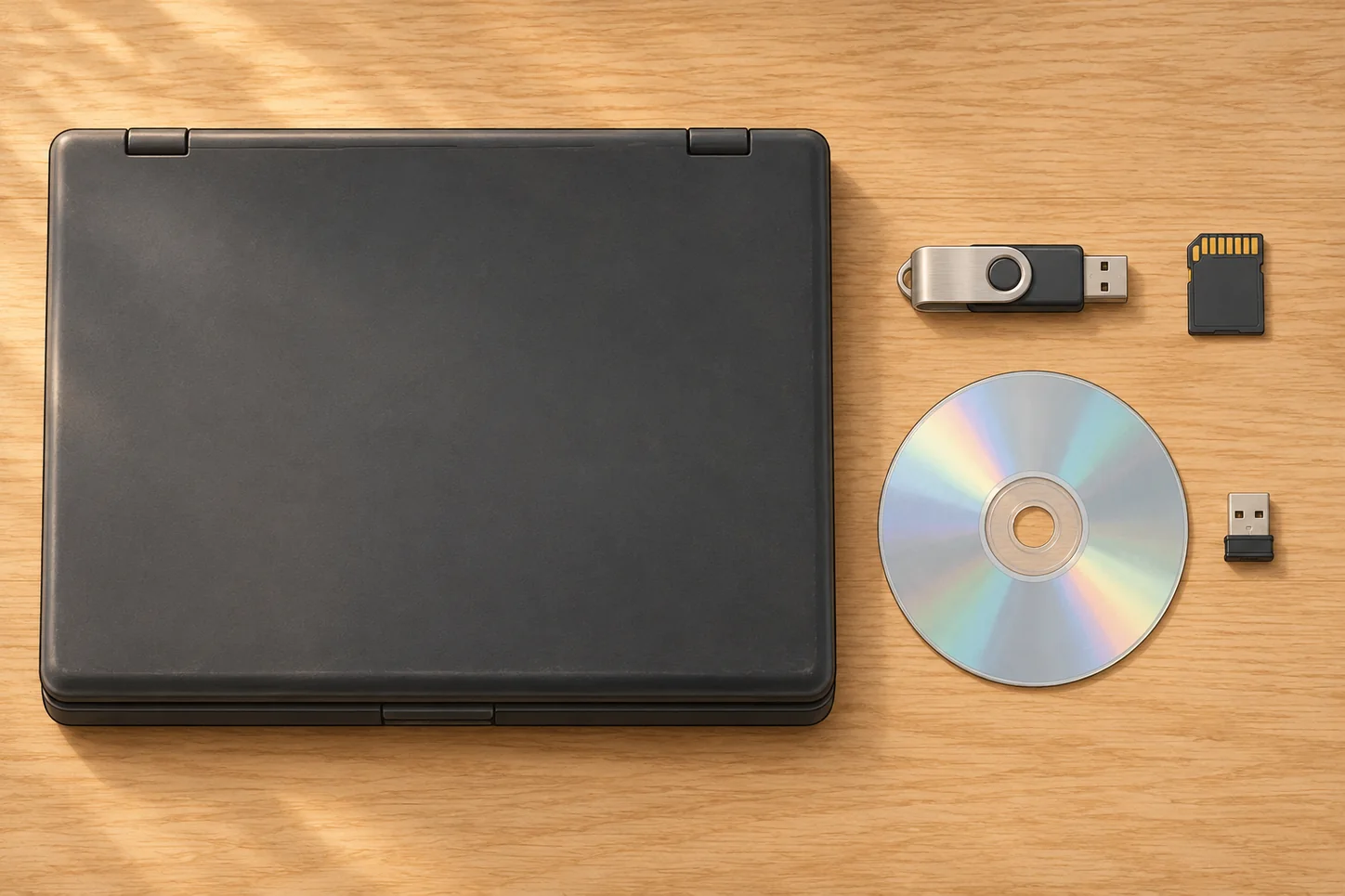
Old computers shouldn't go in the household bin. Household waste recycling centres take small electrical items.
New laptop setup checklist
You may find it easier to print this list and tick things off as you go.
Before you start
On the new computer
Before the old one goes
Want a hand?
If you would rather someone else did it, or you aren't sure where your files or emails are kept, Craig at No Drama IT can collect the computers, do the work and bring them back.
- Basic new Windows PC setup: £69. One new, working Windows computer set up ready to use. No files are moved from an old computer.
- Standard computer changeover: £119. One working new Windows computer set up, plus agreed accessible personal files moved from one working old Windows PC.
Moving every program and setting, printer or network work, and wiping or disposing of the old computer are not included; ask if you need extra help. Software licences and subscriptions are not included. No VAT is added. Collection and return is included in Duffield, Belper, Allestree and the other covered villages; further afield is by quote. What is included and the price are agreed before booking.
Call or text Craig on 07743 273523, or email hello@nodramait.co.uk. More about new computer setup.